Showing posts with label iPhone - app. Show all posts

22.1.12

iPhone Voice to Text, voice app control - VLingo appr Texting


Uploaded by VlingoVoice on Apr 15, 2010

Vlingo for iPhone provides you with powerful voice recognition for your iPhone to search the web, update your Facebook and Twitter status, call your friends, and send email or sms messages all by simply speaking to your phone.


Uploaded by on Aug 30, 2011

The Vlingo Virtual Assistant makes iPhone voice to text messaging fast and easy when your hands are tied.


Uploaded by VlingoVoice on Mar 24, 2011

Voice dialing your iPhone contacts has never been easier. Voice dialing is just one of the many free features offered by the Vlingo Virtual Assistant. Check out our demos of how quick and simple it is to get things done on the go with Vlingo.


Uploaded by VlingoVoice on Mar 24, 2011

Voice recognition for iPhone is now more useful than ever with the Vlingo Virtual Assistant. Updating your social networking status on Facebook and Twitter is just one of the many great, free features Vlingo offers. Check out our demo video of how Vlingo's voice recognition for your iPhone makes getting things done on the go super fast and simple.


Uploaded by VlingoVoice on Mar 24, 2011

The Vlingo Virtual Assistant makes searching the mobile web faster and easier than ever. With simple voice commands, you can quickly locate businesses and services. Once you found what you need, Vlingo offers one-click calling, reviews and directions as well! No question our Virtual Assistant the best way to do a mobile search on your iPhone.

Voice-to-Text iPhone Apps

24.12.11

Talk-o-Meter: Measure the Give and Take in Your Conversations - Technology - GOOD

The Talk-o-Meter: Measure the Give and Take in Your Conversations - Technology - GOOD

The Talk-o-Meter: Measure the Give and Take in Your Conversations

Conversation is an art. And, as with other art forms, creating a good conversation requires careful use of positive and negative space. In other words, you generally don't want one person dominating a conversation by talking all the time.

Technology to the rescue. The Talk-o-Meter is an iPhone app that's designed to give people feedback about how much they're talking in a conversation. You place your phone on the table and the app automatically recognizes the voices of the interlocutors and keeps track how much time each person spends talking. During the conversation, the screen displays the balance of talking time in 1-, 2-, or 5-minute intervals. If one person's talking much more than the other, you can see it on the screen. Right now the app only works for conversations between two people "who do not have similar voices and talk in a quiet environment." A version for conversations between more people is in the works.

It would be pretty passive-aggressive to pull this out when you sit down to coffee with a confessed chatterbox, but you could use it covertly if you're just curious about whether your conversations have an equitable give-and-take. We all like civilized discourse, right?

3.12.11

WorldCard Mobile iPhone App Review


Uploaded by on Jun 10, 2011

WorldCard Mobile, the leading business card scanning application for iPhone, uses OCR (Optical Character Recognition) technology to instantly transfer information from business cards to the user's native contacts. With a simple click of the camera, you no longer have to manually input contact info from business cards or email signatures.

Why WorldCard Mobile?
* Superior text recognition
* High-speed scanning & update
* Card Holder function to view & manage contact info
* Create groups of contacts with Card Holder for easier navigation & organization (school, work, etc.)
* Cover flow and List style view for contacts
* Automatic camera shake reduction
* Email signature capture
* Automatic sorting of contact data
* Merge new data into existing contacts
* Auto-image rotation when scanned sideways
* Manual cropping by finger when recognition happens partially
* Ability to differentiate business cards from saved images
* Add Social Network Function.
* Image Distortion and Enhance.
* Support data exchange with WorldCard desktop software(Open In/ import /Export / iTunes File Sharing)
* Recognition of 7 languages: English, French, German, Italian, Spanish, Portuguese and Dutch. You can switch from one language to another just like that!
* Integrated w/ WorldCard Contacts (sold separately) to make a call, text, email or browse the company website directly from business card images

Take a picture. Add a contact. That's it!

No manual entries. No typos. No more confusion in your contacts.

Simply use the iPhone camera to auto-focus and snap a picture of any business card. WorldCard Mobile will recognize and transfer the info to your contact.

Tips to improve recognition:
1. Place the business card on a well-lit, flat surface
2. Hold the iPhone upright, above the card
3. When you've fixed focus on the card, hold the phone firmly & click
4. Check the results for recognition
5. Crop manually for re-do of recognition


***** Compatibility Notes *****
* Fast, Accurate Business Card Reader for iPhone 4, 3GS.
* Not recommended for iPhone 3G/iPod Touch 4th Gen. due to the camera's inability to auto-focus.
* Works on the iPad and iPod Touch by uploading business cards from the photo library.

Category:

Science & Technology

iPhone business card scanners Review | Mobile | iOS Central | Macworld

iPhone business card scanners Review | Mobile | iOS Central | Macworld

iPhone business card scanners

For scanning business cards onto your iPhone, WorldCard Mobile stands out

I’m happy with the iPhone’s touchscreen keyboard, but I don’t love typing in new proper names or email addresses—the stuff that the iPhone OS can’t auto-correct properly. Since the business world today still clings to the relic of eras past known as the business card, and since tapping in those details can be a bit painful, several apps exist to scan cards in with the iPhone’s camera. I tested four.

WorldCard Mobile - business card reader &... Business
1782 user reviews
$5.99
GET IT
Business Card Reader Business
1612 user reviews
$4.99
GET IT
BizSnap Business
241 user reviews
Free
GET IT
ABBYY Business Card Reader Business
177 user reviews
$1.99
GET IT

With all of these apps, the quality of the photo you take directly impacts how well the software can recognize the text on the business card. In each app, you’ll want to get as close to the card as you can without it getting blurry, hold the iPhone completely still, and make sure there’s plenty of light without casting shadows on the card itself.
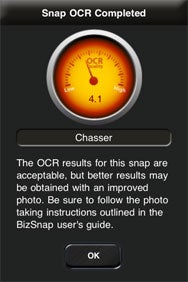

Feedback: In addition to scanning your business cards, BizSnap also scores the quality of your photo.

The first app I tested was BizSnap from iApps. It’s free. Sort of. I’ll explain that part in a moment.

When you’re ready to snap a photo of the business card, BizSnap puts a guide box on the iPhone screen for you to position the card. The custom Take Photo button is color-coded; when the camera is still and in-focus, it turns from red to green. To recognize the text on the card, the image is actually sent to BizSnap’s servers, which perform the optical character recognition (OCR) and send the data back to your device. (It’s the only app I tested that doesn’t do this processing on the iPhone itself.) The process usually takes no longer than a minute, but obviously requires that your iPhone be online. You can shoot card photos and save the recognition process for later.

When your scanned text comes back, BizSnap also scores the quality of your photo. I found that it complained a lot about photos that other apps scanned with ease. Overall, the OCR is acceptable, but noticeably more error prone than some of the apps I tried.

Like all the apps I tested, BizSnap doesn’t just need to recognize the text—it also needs to figure out which words go into which fields. I encountered errors like a city of “New” and a state of “Jersey.” When BizSnap guesses wrong and puts words in the wrong places, it makes the process of correcting fields straightforward: You can copy any of the recognized text and paste it into any contact fields. Once you’re happy with the information, you can create a new contact on your iPhone with a single tap, but there’s no facility to merge the new information with an existing contact.

As I was testing, I encountered the concept of “snap tokens,” because I’d run out. While the app itself is free, you’ll need to purchase tokens to get your photos processed. You can pay $1 for 10 snaps, $2 for 25, or $6 for unlimited processing.

BizSnap also offers receipt scanning, which you won’t find in any of the other apps in this round-up. I found receipt photo processing was especially shoddy, repeatedly reporting purchase prices of $0.00, though that was, unsurprisingly, never really the case.
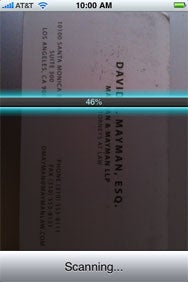

Give It a Scan: When Business Card Reader scans a business card, it uses a clever scanner-like animation while the job is going on.

The next app I tried was Business Card Reader, available for $5 from Shape Services. In a clear advantage over its competitors, Business Card Reader lets you tap anywhere on the screen when you’re photographing cards, which makes taking good pictures easier. When you tap to snap the photo, the app waits until you’re holding still before it actually takes the picture, which is an especially nice touch. Like BizSnap, it shows on-screen markers to help you position the card properly before its close-up.

Once you’ve snapped your photo, Business Card Reader does its OCR scanning right on your iPhone, with a clever scanner-esque animation as you wait. Scanning takes seconds, and worked with impressive accuracy. Once you’re happy with the information, Business Card Reader offers options to create a new contact, or to merge the new data with an existing contact. The first option worked great, but the merging option crashed brutally every time I tried it: The app would quit, the card image would be lost, and a new (duplicate) entry would be created in my address book—the exact thing I was trying to avoid.

When you create a new contact, BC Reader saves the scanned business card image as the contact photo, which is both smart and odd: Seeing an image of your caller’s card when the phone rings is a bit jarring.

Compared to BizSnap, Business Card Reader excels in every area: A slicker interface, with scanning that’s both speedier and more accurate.
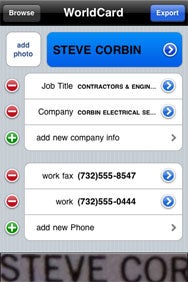

Your Name Here: If WorldCard Mobile can’t figure out which text needs to go in what field, tap back to the card and draw a box around the relevant info.

WorldCard Mobile, on sale for $5 at this writing, uses the iPhone’s regular shutter-button interface when you photograph your business cards. Unlike the first two apps I tried, it doesn’t offer an on-screen guide, or give an indication when everything’s in focus and ready for you to take the picture. As it turns out, that didn’t matter. It’s easy to tell when the business card is in focus.

Scanning in WorldCard Mobile is blazingly fast. When you review and edit the contact information it scans, the app shows you a cropped image from the card to reflect where that information come from. This makes verification and correction simple—though there was very rarely anything to correct.

If the app can’t determine which text on the business card should go in a specific contact field, you can tap back to the card and draw a box around the relevant info; WorldCard Mobile identifies that text and immediately stores it where you’ve indicated. In effect, you’re copying and pasting from the card image to the contact information. It’s magical.

Again, you can create a new contact on your iPhone with a single tap. Merging data with an existing contact works great, too.

Offered by Penpower Technology, WorldCard Mobile works faster and more reliably than any of the other apps I tried, and will impress non-iPhone-wielding colleagues as you scan their cards in seconds.
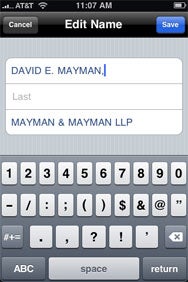

Field Flaws: ABBYY Business Card Reader shoved the full name of contacts into the first name field in our testing.

The last app I tested was ABBYY Business Card Reader, currently on sale for $2. ABBYY’s app shows on-screen guides for taking your photo, like BizSnap and Business Card Reader, and it scans very fast, like WorldCard Mobile. Unfortunately, the app suffers from some obvious flaws that make me wonder whether anyone at ABBYY tested the app at all.

First, the good news: Overall, ABBYY’s OCR works quite well, across 16 different languages, with minimal typo correction needed. One weakness that I saw again and again, however, was poor performance at recognizing spaces, leaving me with too-frequent addresses like “1600PennsylvaniaAvenue.”

Far worse, though, is ABBYY’s complete failure to respect the iPhone’s address book fields. Your contacts’ full names are shoved into the “first name” field, and their complete addresses (including city, state, and zip) are crammed into the single-line “street address” field. This makes no sense, and renders sorting your address book alphabetically by last name impossible. On top of these failings, ABBYY (like BizSnap) provides no way to merge scanned information with an existing contact.

If ABBYY addresses these screamingly apparent bugs, the app can rival WorldCard Mobile for true dominance in this genre. As is, though, it fails to execute on its core functionality, and is thus a definite pass.

Note that both ABBYY Business Card Reader and BizSnap require the iPhone 3GS and its more advanced camera. Both Business Card Reader and WorldCard Mobile also require an iPhone 3GS, but those apps will work on older iPhones equipped with a macro lens attachment.

If you mean business when it comes to business cards, then the choice is easy: WorldCard Mobile performs far more capably than the rest of the bunch.

[Lex Friedman is a frequent contributor to Macworld.]

13.8.11

iPhone Vibrate Alert TWEAK When Call Connects - iOS Vlog 317 - YouTube

iPhone Vibrate Alert TWEAK When Call Connects - iOS Vlog 317 - YouTube

Uploaded by on Mar 9, 2011
Phone Buzzer is a simple tweak that will vibrate your iPhone when your call connects. So when you are calling a person and the phone suddenly stops ringing, you will know if you connected to the person or not. As we all know iPhones drop calls all the time, this lets us know that the person/voicemail has picked up and not dropped the call. You normally have to look at your screen to see if it connected, but this will let you feel it on your face =] Check out Phone Buzzer in Cydia for FREE.

iOS SDK Snippet: iPhone Vibration

iOS SDK Snippet: iPhone Vibration

iOS SDK Snippet: iPhone Vibration

iOS SDK Snippet: iPhone Vibration

  • Technology: iOS SDK
  • Difficulty: Beginner
  • Completion Time: 15 Minutes
With this iOS SDK code snippet, you will learn how to cause the iPhone to vibrate with the AudioToolbox framework and a single line of code. You will also learn additional details about iPhone vibration not explained in the code snippet itself, such as how to generate multiple vibrations at once.

The source code referenced in this screencast was written by KevinBomberry and posted to Snipplr, an Envato site dedicated to saving and sharing code.

GO TO LINK TO VIEW VIDEO: iOS SDK Snippet: iPhone Vibration

iPhone OS - Vibration - Simple Version

  1. // NOTE: You need to import the AudioToolbox for access 
    to the vibrate
  2. #import
  3. // The one-liner:
  4. AudioServicesPlaySystemSound (kSystemSoundID_Vibrate);
  5. // The function:
  6. - (void)vibrate {
  7. AudioServicesPlaySystemSound (kSystemSoundID_Vibrate);
  8. }
  9. // The call from within another method in the same class:
  10. - (void)myMethod {
  11. [self vibrate];
  12. }
View this snippet on Snipplr

iPhone Vibration Notes

  • Vibration will not work on the iPodTouch or the iPad.
  • Calling this function on unsupported devices will do nothing and will not generate a run-time error.
  • The duration of each vibration is fixed to approximately 2 seconds in length and cannot be altered.