6.7.12

Creating a public page using Google Reader | The Edublogger

The Complete Educator’s Guide to Using Google Reader | The Edublogger

Creating a public page using Google Reader

A public page is a place for you to collect any of your items in Google Reader that you want to share with other people.

Public pages are handy for educators who want their students to be able to read all posts from the student blogs in one location but don’t want their students to set up their own Google Reader account.

Please note:
  • Previously you could create public pages by making a folder public
  • Now you create a public page using a bundle
  • If you’ve already added a Google Reader blogroll to your blog sidebar then the students can click on the preview link at the bottom of the blogroll to visit your public page and read the latest posts.
  • To add and remove blogs from your Public page you need to edit your Bundle by following the instructions for editing your blogroll.
Here’s how create a public page:
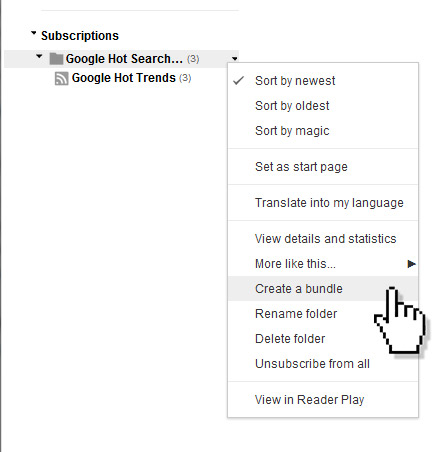
1.  Hover your mouse over the name of a folder you want to create a public page from to display the drop down arrow.
2.  Click on the drop down arrow to display the folder options.
3.  Select Create a bundle.


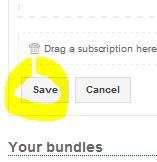
4.  Click Save.

5.  Click on Add a link.

6.  Copy the URL from the address bar.

7.   Now go to Links > Add New in your blog dashboard
8.  Add a title for your Google Reader public page to the Name

9.  Add your Google Reader public page URL to the Web Address 
10.  Select Blogroll in the Categories and the click Add Link

11. Now go to Appearance > Widgets in your blog dashboard
12.  Add your links widget to your sidebar.
13.  You should now see a link to your Public page and students just need to click on this link to read the latest posts.

Embed Google Reader « Affordable Websites

Embed Google Reader « Affordable Websites


Embed Google Reader

How to embed Google Reader rss feed subscriptions.

Embed Google Reader subscription

  1. Log into your Google Reader account.
  2. Mouse hover over the subscription and a little down arrow will appear. Click on the down arrow.
  3. From the drop down menu select ‘New Folder’.
  4. Name the folder and click the ‘OK’ button.
  5. Now you can see the folder you just created and your feed subscription should automatically be inside the fold. You can drag and drop other feeds into this folder that you want to embed also.
  6. Hover over the fold and click the small arrow that appears.
  7. Click the ‘Create a bundle’ option.
  8. Click the ‘Save’ button to save your bundle.
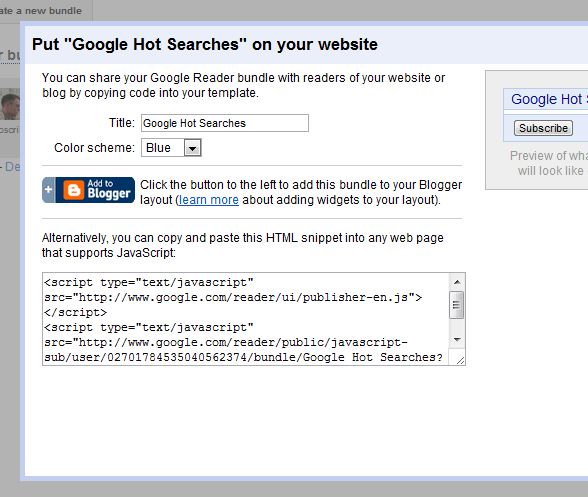
  9. Click the ‘Create a bundle clip link.
  10. Edit the ‘Title’.
  11. Copy the code snippet.
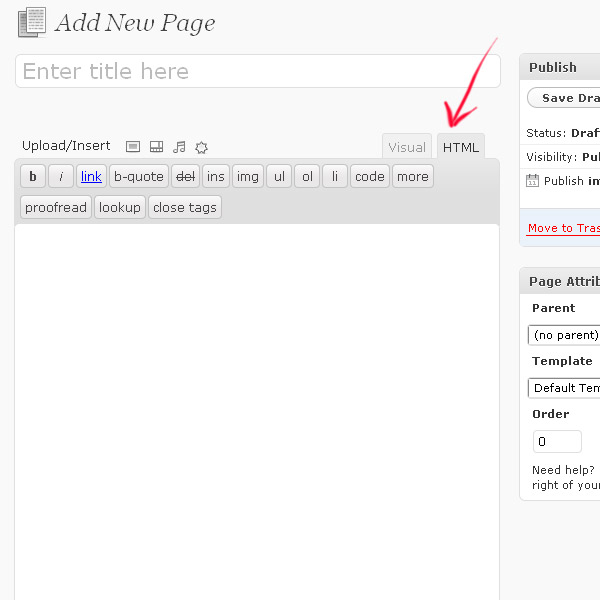
  12. Paste the code snippet into your Website’s HTML. If you’re using WordPress you can paste the code snippet into any page post or widget.
    Note: If you are pasting this code snippet into a WordPress page or post, make sure you’re in HTML mode.

‘Add to Blogger’

  1. Copy the code snippet then click on the ‘Add to Blogger’ icon.
  2. Select your blog from the ‘Select a blog:’ drop-down menu.
  3. Enter a title for your Bundle.
  4. Click on the ‘Edit Content’ link and paste the code snippet inside it.
  5. Click the ‘Add Widget’ button.

Google Wants to Teach You to be a 'Power Searcher' (You Should Let Them) - Education - GOOD

Google Wants to Teach You to be a 'Power Searcher' (You Should Let Them) - Education - GOOD

power.searcher
Dying to become a master of Google’s search engine? If so, look no further than Power Searching with Google, a new, free class offered by the tech giant starting July 10th. The course promises to teach users "tips, tricks and tactics" that'll help you "find exactly what you’re looking for, when you most need it." Real talk: Even if you don't spend your time dreaming about how to improve your searching skills, you should take Google up on their offer to teach you.

Last year the results of a two-year study found that college students are overly reliant on simple searches, which, thanks to the ultra-personalization of search engines, don't always turn up what you need. The researchers recommended that students receive "better conceptual training on how search engines organize and retrieve information." If we want students to grow up digitally literate, they need to know their way around search engines. But, thanks to librarian layoffs and crunched teacher schedules, too many kids aren't being taught how to conduct information searches, either online or through the old school card catalog. Those of us who aren't students anymore but have to use the web for work and fun are also guilty of sticking to basic searches, mostly because we don't know how to do anything else.

Google’s education program manager Terry Ednacot writes on the Google Blog that no matter what your current searching ability may be—from those of us who have no idea you can use the search box as a calculator to folks who are already masters of Boolean logic—through the six 50-minute lessons of the class, you'll learn how to use the search function to "solve everyday problems" and help you "find what you need faster." After taking the class, says Ednacot, you'll even be able to do cool stuff like "identify the location of a picture your friend took during his vacation" or find "that green-covered book about gardening that you've been trying to track down for years."

And, instead of a boring series of slides, Ednacot says the class will be interactive—style-wise it'll take a page from MIT and Harvard's new joint online learning platform edX. You can work through the individual classes at your own pace, as long as you complete them before the end of July. If you pass the post-course test, you'll even get a printable certificate of completion. While certificates are awesome, in our information-heavy society, isn't knowing how to really manipulate a search box worth so much more?
Photo via (cc) Flickr user hoyasmeg